Showing posts with label Snow Leopard. Show all posts

Wednesday, 20 July 2011

Updates to OS X

Hmmm …

OK, GRANTED, I’ve not been able to afford the Lion update to OS X.

Which is a bit of a two edged sword.

On the one hand … ?

On the ONE hand, rabid Macboi that I am, I’d love to be able to say I’ve bought Mac OS X 10•7, burnt it to disc — or what-have-you — and then safely installed it.

On the OTHER hand … ?

I’m also very aware that — with only 1Gb of RAM — my ageing Mac Mini, Bruce, would definitely have issues, considering that Lion requires 2 to function comfortably.

And 3 to 4 Gb to really yomp.

On the other hand … ?

On the other hand, Apple has managed to introduce a couple of other updates, today.

It’s managed to updat iTunes to version 10•4 and Safari to version 5•1.

These seem to mostly be cosmetic changes, from where I’m sitting.

Although one new feature in Safari — what Apple calls the Reading List — does seem to be bloody handy.

It’s a sort of temporary bookmarking feature: which will come in bloody handy!

Well played, them … !

It means I can — possibly — do some MAJOR reorganising … !

Tuesday, 30 November 2010

Winterwonderland

You know, I’ve got to admit, I’m a devil for misreading rotas, I am … !

Turn’s out I had today off: but, given the weather, I’m also willing to bet I’d’ve had a phone call to ask me in.

Either way … ?

It meant that I could use my phone to take a few snaps, along the way.

If you’ve read today’s teaser, you’d’ve seen the first one: the next’s after daylight struck.

The third’s on the way up Warley Hill: and yes, before we complain about the roads not being gritted, that’s a gritting lorry caught in the carpark Warley Hill turned into, this morning.

And the last is outside the shop: I thought I’d show you the precinct area.

Just before people turned it into Brentwood’s version of the Cresta Run … …

«•»


Wednesday, 3 February 2010

Following on from the Disc Problem post …

Well …

This is going to be quick …

Remember me saying about how I was having trouble with the optical drives attached to the Mini?

Well, I had a … minor … very minor … result.

I’d been mooching around the various Apple Forums, and — so far — the only resolution I’ve seen on there is to clean the interior drive.

Which is a job and a half, as you might be able to imagine.

But there were a couple of points that caught my eye.

Using a lens cleaner: which isn’t perfect.

And (for the external burner), unplugging it between uses.

Now I’ve tried using the DVD lens cleaner option on the internal drive.

Which didn’t seem to help.

But I do know that, having used a DVD lens cleaner on the (pictured) exterior drive, and making sure it’s disconnected between uses does seem to have helped.

Or, at least, it helped on the attempt I made, burn a copy of Dalek Invasion Earth:2150AD, that I’d backed up years ago.

Which was an overnight job: but one that worked.

So it means I’m be happy.

For now.

But eyeballing a lot of — for the moment — rather pricey kit.


Monday, 1 February 2010

The Problem With Optical Drives …

Hmmm …

Bloody things …

Do you remember me writing, on Saturday, ever since the installation of a recent security patch, that I’d been getting problems with both my interior and exterior optical drives?

Well, there was a thing or two I tried, after mooching around on the various Apple discussion forums, devoted to the Mini: and it seems I wasn’t the only one to get this sort of issue.

The Mini’s optical drives are notoriously touchy, and have been for years.

But, treated with a certain amount of care, they’re a nice, usable piece of kit.

However, after the security patch was installed, the interior optical drive on the Mini — the interior drive in particular, although this has affected the exterior DVD/CD burner — has been refusing to burn data to DVD.

It’ll read the install disc, happily: it’s how I was able to do a Permissions repair, just recently.

When I checked on the Apple forums, it seems quite a few people had been having similar problems. Both with the interior drives on the Mini, and iMac, and all, seemingly at about the same sort of time, and all involving Mac OS X 10.6.2: with one or two involving both Tiger, and Leopard; Mac OS X 10.4.x and 10.5.x, respectively.

Now, having cleaned both burners, I’m still — still — having trouble with the interior drive — a Pioneer DVD-RW DVR-K06 — on the Mini, but was able to burn an Ubuntu Studio alternate install disc* on the exterior drive: again, following one the thread posters suggestions to clean the drives, and to plug and unplug it, when not in use.

So, as you can imagine, this isn’t something I’m too happy about.

Nor have I — as yet — seen anything updates, by Apple, that could relate to this.

Frustrating, isn’t it?

Next step, hardware test …


* Shame the actual .iso file was blank: probably why the resulting disc I asked Movie Night Adrian to check for me, turned out to be a nice, shiny coaster. Which was weird. Using the exterior drive — a NEC DVD_RW ND-2510A — to burn the .iso file in question seemed to work, as you can tell from the attached photos. However, when I checked the original I had on an external hard drive I use for storage … I found it was empty. Bit of a git, that …


Saturday, 30 January 2010

A Problem …

Hmmm …

Hmmmm …

You know, in normal circumstances, I usually won’t hear a word said against Apple, and their products, I really don’t. At least not off from people who don’t have one.

But I’ve had a glitch — yes, glitch seems to be the word — crop up up, ever since the release of Security Patch 2010 − 001.

DVD’s don’t seem to burn.

Hmmm …

Bit of a bugger, that.

And a rather frustrating one, as you can imagine.

As you probably know, by now, I’m using a mid-2007 model Mac Mini, running Mac OS X 10.6.2.

With the past few files I I’ve tried burning to blank DVD — every format, bar DL’s, and quite a few different brands — and all I get in reply is the following:

The disc can’t be burned because because communication between the computer and the disc drive failed (error code 0x80020022).

Which wasn’t something I got, before the patch went on.

I also know that — having browsed through the various Apple forums —

I think I’d appreciate any thought’s people have. Or help anyone can give.

If you’ve come across this problem, and developed a workaround, or solution, I’d appreciate a comment or two.

And not ones of the ‘Get a PC sort’, THANKING you … !


Saturday, 16 January 2010

Permissions …


You know, I’ve not actually written much about Snow Leopard, have I, just recently.

Why, I don’t know, but there you go …

I do, though, that I’ve done the usual thing recommended by many Mac owners.

What’s called a Permissions check.

Mac OS X — like its Unix and Linux cousins — has a complicated web of what’s called Permissions associated with every file, folder and application on the Hard drive.

They’re fairly important to how OS X works.

Because they govern who can — and can’t — access any given file.

Or Application, folder, account, what have you.

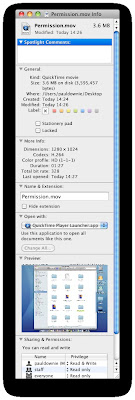
Actually, I’ve put a small screen recording together, so you can check on the permissions for any given item on your Mac. I’ll embed at the bottom of the page, I’m still adding an audio track to it. But — so you know what to do — open a Finder window, highlight a folder, file, or application. Then call up that file’s Information window by pressing ⌘(cmd) and I, or by ctrl-clicking on the file, and going down to the ‘Get Info Option’. At the bottom of that Info window, you’ll see — and can change — the file’s permissions window.

Now, as you can see from that, you can change the Permissions for each file, folder, or application with the file’s Information Window.


But this is also something you can do in Terminal: although, to be frank, this isn’t something I’ve investigated for myself.

At any rate, you’re probably wondering why on Earth I’m telling you this, aren’t you?

It’s mostly because of what I was doing earlier.

A Permissions Check … !

Complicated?

Not really, although there’s probably a lot going on under the hood, there.

Over time, permissions can get a bit scrambled. To the point where you’ll find your Mac noticeably slowing down.

So what’s needed is a basic Permissions check.

Or Permissions repair, as it’s sometimes called.

Basically, all it does is unknot the tangled set of permissions, free up some space, and put a little bit more speed into your machine.

And involves using our old friend, Disc Utility.

But not the actual copy on the hard drives, in Hard-Drive>Applications>Utilities, oh, no!!

The one on the actual Install* discº that came with our Macs.

But what you need to do is boot from your Install disc. That’s easy to do.

Get your Install disc out, and put it into the main optical drive of your Mac.

Restart the Mac.

The minute — literally, the second — it shutdowns, press and hold down the ‘C’ key. Make sure you’ve been to the loo, and made a cuppa, before you do this, it does take a little longer than usual.

Your Mac will then restart … from the Install disc⎺!

But we don’t want to re-install what ever version of OS X is on our machine.

What we want to do is go into the Utilities options, and open Disk Utility.

Then — as if we using the one on our Hard drive — we pick our hard drive from the Menu, then click the Verify Permissions button.

And once THAT’S finished — and I’ve got to confess, this seemed to got a faster under Snow Leopard, than it did with the version of Leopard that came with the Mini — you can hit the Repair Permissions button.


And, finally … !

Once that’s done, you can restart your Mac from the usual Start-up disc.

And you’re ready to go!

•••••

Now, I know that sound’s complicated.

Possibly a bit to complicated, for some.

But it’s really a fairly simple — if time consuming — procedure.

And, daft as it sounds, it’s also one that helps keep any muck from building up on our main hard drivesª.


* Or the Upgrade disc that you’ve just got for Christmas: whatever’s more recent.

º There’s other options, of course: DiskWarrior has a very good reputation for this sort of thing!

ª Which does help. I think — after using AppDelete, yesterday — I’ve uninstalled a lot of stuff, AND installed a lot of updates, over the weekend. Doing this Disc and Permissions repair keeps the amount of software junk down on the Mini.

If you’re familiar with the way an Ubuntu ‘Live’ disc work’s this is pretty much the same procedure: except here, we’re using some software, instead of installing it.

Friday, 15 January 2010

Just a quick recommendation for Mac fans …

You know, I’ve got to confess, I’ve an opinion to air.

There really is a lot of ol’ rhubarb on TV, at the moment!

No, there is, though!

Which why I — in all probability — am annoying the bejeebers out of my neighbours, with a healthily loud amount of prime Frankie Goes to Hollywood, at the moment!

And — in my humble opinion* — Holly and the boys were the Sex Pistols of the 1980s.

Well, come on!

Five guys on stage, sticking two fingers up at the universe, and DARING everyone to make something of it?

How more punky do we want?

Adrian?

Adrian?

But, bless ’em, the Frankies weren’t what I intended to tell you about.

Or Café World, either, although that’s giving me some entertainment, in the absence of both Allison and anything watchable on TV.

No, what I was gonna do — for all of my Mac user readers out there — was mention a little application called AppDelete.

I’ve had a copy of AppDelete for some time, now: in fact the version I’ve got — AppDelete 1.1 — dates back from the days of my Trusty G4, running Mac OS X 10.4.x. And still runs perfectly well on the Mini, under Snow Leopardº.

OK, now I know you’re probably asking your self, “What the heck is AppDelete?”

Like it’s not obvious … ?

Sorry, that sounded terribly patronising, didn’t it?

I’ll apologise, now, for that.

And gently move on.

AppDelete — or the version I have — does what it says on the tin.

It deletes applications.

Not only that, but it also tracks down all of the extraneous stuff that comes with them.

You know, the various preference lists, preference panes, context menu items, what have you, that come with them.

The alternative is simply to delete an application. And track down the rest of the bits and, manually.

NOT an easy job, I can tell you!

Something like AppDelete makes a tedious job a lot easier!!


* Is it me, or is ‘In My Humble Opinion’ one of the most ridiculous phrases in the English language? It is, isn’t it? I mean, who on God’s Green Earth, has a HUMBLE opinion? I mean, really? It’s never gonna happen, is it?

º Actually, Snow Leopard’s given the version I’m using a whole new lease of life. It’s slow — which it’ll have to be, considering the Mini’s using a lot less RAM than it could — but it still works a lot better than it did under Leopard. And has enabled me to get rid of a lot of unused applications.